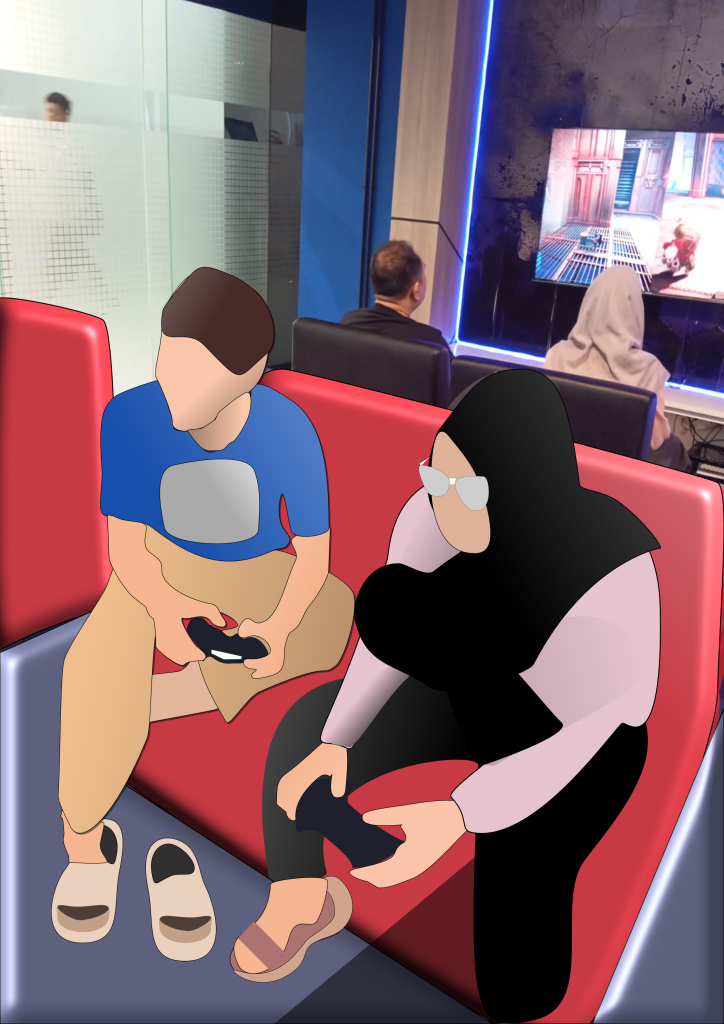
foto profile - project multi media
Good morning, everyone.
Today, I’d like to explain how I created this design using Affinity Designer. Affinity Designer is an easy-to-use graphic design application with many useful tools. I chose this software because it helps me create clean, professional designs. In this presentation, I’ll walk you through the steps I followed, from setting up the canvas to finalizing the design.
Today, I’d like to talk about composition in design using Affinity Designer. Composition is how we arrange text, images, shapes, and colors so that a design looks balanced and is easy to understand. Good composition helps guide the viewer’s eye to the most important information. Before I start designing, I carefully plan the layout to ensure every element is in the right position and has enough space.
I’d like to share my experience using Affinity Designer. At first, I thought it was a bit difficult because there were so many tools and features to learn. However, after practicing for a while, I found that the software is actually quite easy to use. The tools are well-organized, and creating shapes, adding text, and editing objects became much faster. In my opinion, Affinity Designer is beginner-friendly if you’re willing to practice regularly.